

STL tutorials ·
Remove a logo from an STL: Erase & Rebuild
Remove raised or engraved lettering and reconstruct the local surface from its surroundings.
Deutsch · English · Français · Español
Remove raised or engraved lettering and reconstruct the local surface from its surroundings.
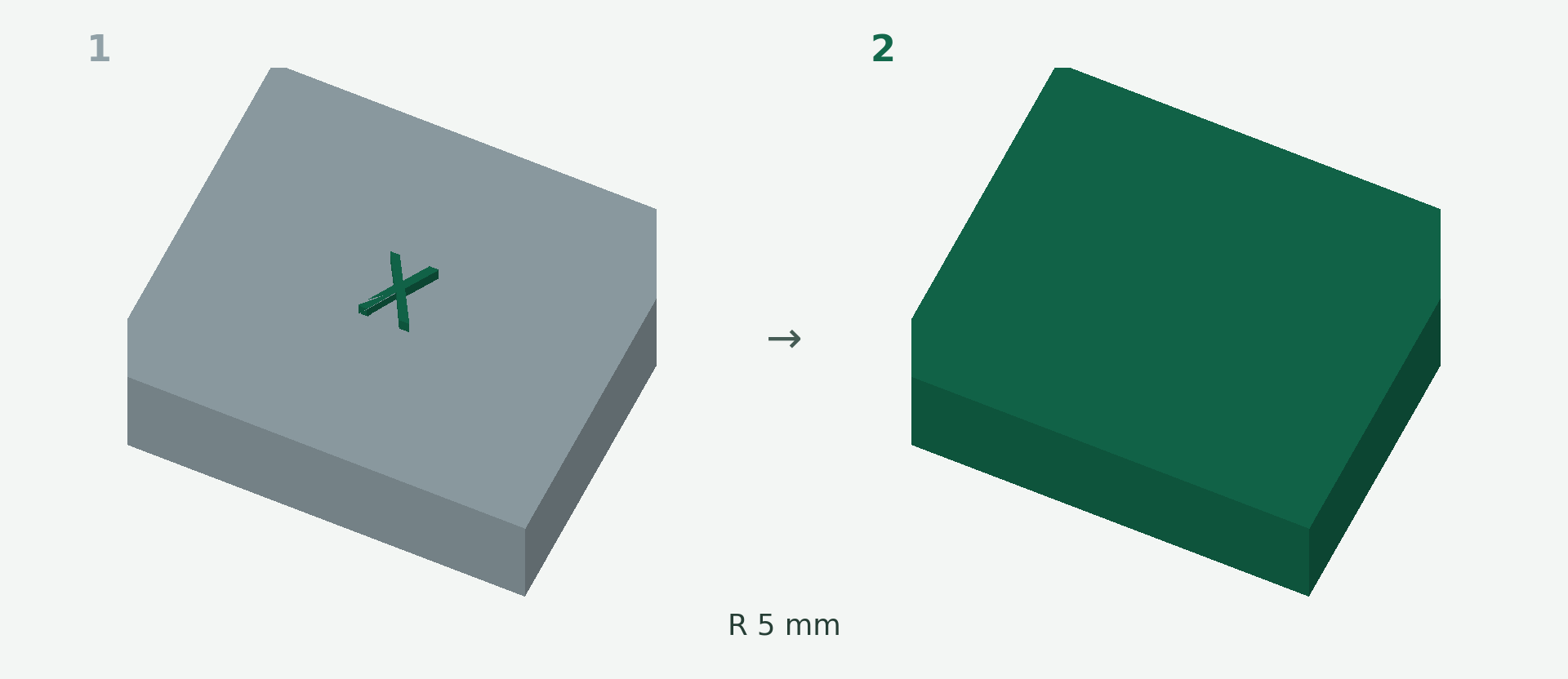
Rendered example views: 1 shows the original model and 2 the calculated result. The images illustrate the model geometry, not the editor interface.
A simple example
A plate carries a raised “X”. The example removes it with a 5 mm selection radius and a 2 mm maximum edit depth. Adjust these values to your model.
Step by step
- Open Repair and choose the area-marking action under Erase & Rebuild.
- Click the centre of the lettering. Set the radius so the entire mark fits inside the dark-green circle.
- Keep the outer ring free of unrelated details. Choose a suitable maximum edit depth.
- Compare the reconstructed preview with the original. Check curvature, joins and the back surface, then apply.
What to check
The surface is estimated from the surrounding border; the original CAD shape is not stored. Uncertain curvature, edges or thin walls are rejected. Selection is circular, not a freehand brush.
Preview and save
A preview is not a saved change. Wait for the checked result and choose Apply. If the button is disabled, read the message and check the selection or inputs. The offered STL download is paid; you will see the current price before purchase.
Nächster Schritt