


STL Editing & 3D Printing ·
Edit STL Files Online: Browser Editor Without CAD Installation
Edit STL files directly in your browser: resize, repair, mirror, cut, add holes and extrude flat surfaces. Follow this step-by-step guide with practical examples and clear advice on previews, saving and downloads.
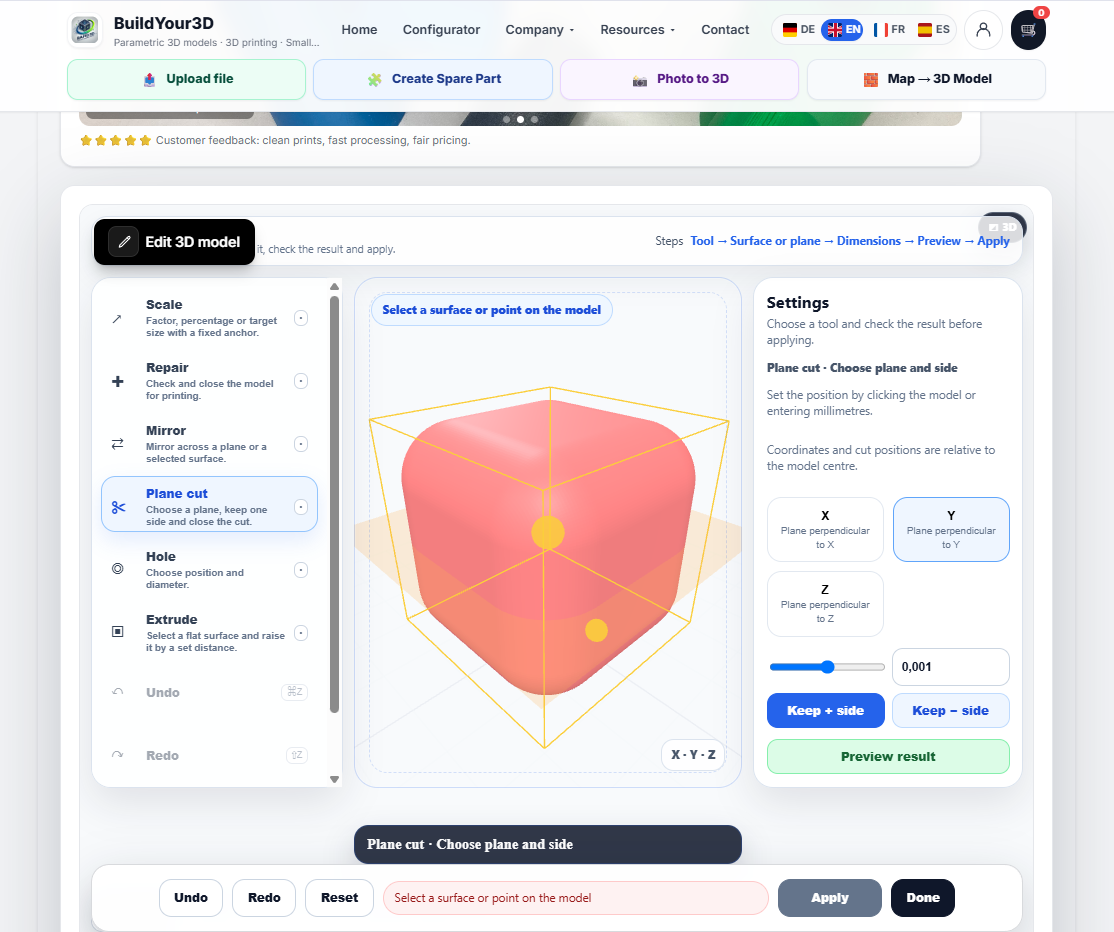
Edit STL files online without buying or installing expensive CAD software: the BuildYour3D browser-based editor lets you resize an existing 3D model, repair its mesh, mirror it, trim it with a plane cut, add holes or extend a flat surface. Upload your file, open the editing tools and save the change with “Apply”.
This is useful when a downloaded model is too large, you need a mirrored bracket for the other side of an assembly, or a part needs an extra mounting hole. This guide explains the six editing tools, their main settings and the difference between a preview, a saved model version and an STL download.
About downloads: the edited STL is offered as a paid digital download. You can review the current price before purchasing, or calculate a quote for having the part 3D printed.
Upload your STL and open the online editor
What does editing an STL file in your browser mean?
An STL file describes the surface of a 3D model using many small triangles. It does not normally contain an editable design history with the original sketches, hole definitions or CAD parameters. Its geometry can still be modified: an STL editor works directly with this triangle mesh.
With BuildYour3D, you use the editing tools in your browser without installing a separate CAD application. Your file is uploaded, and saved geometry changes are processed on the server. “Browser-based” therefore does not mean “offline” or “processed entirely on your own device”.
The editor is designed for specific changes to existing models. Designing a part from scratch, drawing free-form shapes or building complex assemblies is a different task. A suitable parametric 3D configurator or a CAD application may be a better choice for those projects.
Quick start: How to edit an STL file online in six steps
- Upload your file: open the upload page and click “Upload 3D model”. Select your STL file. The stated maximum file size is 100 MB.
- Wait for the preview and analysis: check the model and its overall dimensions in millimetres. Review the geometry and mass information, especially warnings about an open mesh or oversized dimensions.
- Open edit mode: click “Edit 3D model”, then choose the tool for the change you need.
- Set the selection and dimensions: depending on the tool, choose a plane, a point or a flat surface on the model. Enter the required values.
- Prepare the result: use “Preview” for scaling and mirroring, or “Preview result” for a plane cut, hole or extrusion. For a repair, select the repair method instead.
- Apply the change: click “Apply” and wait for confirmation. Check the updated model before continuing or leaving the editor with “Done”.
Important: apply a change you intend to keep before switching to another tool. A visible preview is not yet a saved edit.
Finding your way around the online STL editor
On a large screen, the tools appear on the left, the 3D preview is in the centre and the selected tool’s settings are on the right. The bottom action bar includes “Undo”, “Redo”, “Reset”, “Apply” and “Done”. Narrower windows use a different arrangement, and you may need to scroll within the tool or settings areas.
A highlighted surface, a point marker or a cutting plane first shows where you intend to work. The preview shows the prepared change. For plane cuts, holes and extrusions, a calculated result is loaded for inspection. Check its actual shape rather than assuming that a coloured selection marker means the edit is complete.
The X, Y and Z axes describe the model’s directions. Changing the camera angle does not change the meaning of those axes. Use the axis labels, the highlighted geometry and the numerical values together.
1. Scale an STL file: Resize the model or set an exact dimension
Use “Scale” to enlarge or shrink the model. You can scale it uniformly, adjust X/Y/Z separately or enter a target size for one axis.
Make the model uniformly larger or smaller
Select “Uniform” and enter a scale factor. 1.25 means 125 percent, while 0.5 means 50 percent. You can also use a percentage preset. For a straightforward size change, leave the “Scale anchor” set to “Bounding box centre”, which is the centre of the box enclosing the model. Click “Preview”, check the resulting dimensions and confirm with “Apply”.
Example: Resize a 40 mm model to 50 mm
If the model measures 40 mm along X, select “Target X” and enter 50 under “Target size (mm)”. With “Lock proportions” enabled, the other dimensions change proportionally. The scale factor is 50 / 40 = 1.25. A model measuring 40 × 20 × 10 mm therefore becomes 50 × 25 × 12.5 mm.
Existing holes, wall thicknesses and distances scale too. In this example, a 4 mm hole becomes a 5 mm hole in the model geometry. “Separate X/Y/Z” allows independent changes along each direction, but it can also turn circular openings into ovals. Check mating surfaces and holes, not just the outside dimensions.
The scale anchor determines which reference point remains fixed while the model changes size. If you choose “Selected point”, you also need to select that point on the model.
2. Repair an STL file: Check open or damaged mesh geometry
A model can look complete in the preview and still contain mesh errors. Common examples include open edges or missing surfaces. These problems can affect further editing and volume calculations.
Open “Repair” and start with “Exact repair”. Click “Apply” to begin processing. Wait for the result, then inspect the model and the updated analysis. Unlike a plane cut, the normal repair workflow does not include a separate “Preview result” step before applying.
If exact repair does not produce a suitable result, consider the available “Approximate repair” option. This may change fine details. Compare small openings, edges and mating surfaces carefully. Not every damaged STL can be repaired automatically while preserving the geometry you need.
For more background, read our guide to repairing STL files and understanding common mesh errors.
3. Mirror an STL file: Create a left- or right-handed version
Use “Mirror” to create a mirrored version of an asymmetric part, such as a bracket for the opposite side of an assembly. Choose a mirror plane: the YZ plane reflects the X direction, the XZ plane reflects the Y direction and the XY plane reflects the Z direction.
Start with “Plane offset (mm)” set to 0 and generate a “Preview”. Check that the result is the mirrored version you need, then click “Apply”. Changing the plane offset moves the location of the mirror plane.
Alternatively, choose “Select a model surface” and click the intended surface on the model. Check the offset and generate the preview again. Remember that mirroring affects the entire model, including lettering, threads and other features whose direction matters.
4. Cut an STL file online: Trim the model with a plane cut
The “Plane cut” tool cuts the model along a plane and lets you choose which side to retain. You can use it to remove an unwanted section or create a flat end surface.
Choose the axis, cutting position and side to keep
Select X, Y or Z. The cutting plane is perpendicular to the selected axis. Set its position with the slider, the numerical field or a click on the model. The displayed cutting positions are relative to the model’s centre, not automatically to an outside edge.
“Keep + side” retains the side with larger coordinates along the chosen axis. “Keep − side” retains the side with smaller coordinates. These labels therefore do not always mean “right” and “left” on your screen.
Example: Shorten a 60 mm part to 50 mm
Suppose a straight body extends along X from −30 to +30 mm, making it 60 mm long. A cut at X = +20 mm with “Keep − side” selected retains the section from −30 to +20 mm: a length of 50 mm. Use the actual axis orientation and bounds of your own model when setting the cut.
Click “Preview result”. Check that the correct side remains and that the cut surface is closed. Only then click “Apply”. If you subsequently change the axis, position or retained side, generate a new result preview.
This plane-cut workflow keeps one side. It should not be confused with a feature that automatically provides two separate STL files for download.
5. Add a hole to an STL file
The “Hole” tool adds a cylindrical opening, for example for a mounting screw. Select the tool and click the intended entry point on a model surface. The drilling direction is set perpendicular to that surface.
Enter the “Diameter (mm)”. For a through hole, leave “Depth (mm)” empty. To limit the drilling depth, enter a value. A blind hole is only possible when enough material remains behind the end of the hole.
Example: a diameter of 5 mm with an empty depth field prepares a through hole. A diameter of 5 mm with a depth of 4 mm prepares a hole that extends 4 mm into the part. The second example is only appropriate if the local thickness and the required remaining wall allow it.
Without selecting a surface, you can choose a drilling axis and enter the X/Y/Z coordinates. These coordinates are also relative to the model’s centre. Clicking the intended surface is often easier for a first attempt than estimating a position in three dimensions.
Generate a “Preview result” and check the position, diameter, exit point and remaining walls. Confirm with “Apply” only after inspecting the result. To add another hole, repeat the process at the next location.
Control tip: while the Hole tool is active, the mouse wheel over the model area changes the hole diameter. Check the diameter field again before generating each result preview.
6. Extrude an STL surface: Extend a flat area of the model
“Extrude” extends the model from a selected flat surface. Choose the tool and click the intended surface. The connected flat region is highlighted. Check that selection before proceeding so that you do not modify the wrong area.
Enter the additional height under “Height (mm)”. 2 mm means an extension of 2 mm, not a final overall height of 2 mm. Click “Preview result”, inspect the connection to the existing body and confirm with “Apply”.
This can be useful for raising a flat support surface. It is not a freehand drawing tool or a way to thicken any curved surface uniformly.
How Apply, Undo, Redo and Reset work
“Apply” commits the prepared operation. After a successful edit, a new model version is saved. Wait for confirmation and the updated preview before starting the next operation.
“Undo” and “Redo” move through the available editing history. For changes that have already been saved, an earlier model version may be loaded. Always check which version is displayed after it finishes loading.
“Reset” in the bottom action bar prepares a return to the original upload. Click “Apply” to commit that step. This is different from “Reset tool” or “Reset preview” inside an individual tool’s settings.
“Done” exits editing; it is not a substitute for “Apply”. When unapplied changes remain, the editor offers options to apply them, discard them or continue editing. “Discard” removes the unsaved change, not your original file. Keep a separate copy of the original on your own device too.
Why is Apply greyed out, or the preview not ready?
A required selection or valid value is missing
An extrusion needs a suitable flat surface. Mirroring across a model surface requires that surface to be selected, and a selected-point scale anchor requires a point. Check the diameter, height and scale values as well. An unchanged scale factor of 1, or 100 percent, does not create new geometry.
You changed a setting after generating the preview
If you change the hole diameter or the side retained by a cut, for example, the previous preview no longer represents your inputs. Generate “Preview” or “Preview result” again. A visible cutting plane alone is not enough to apply a plane cut.
The calculation failed
Read the error message and check the model geometry. A simpler selection or a repair may help. Before trying again, inspect the currently displayed model version. A failed operation is not a successfully saved edit.
Before 3D printing: Check dimensions, fit and model condition
A closed mesh is not automatically suitable for every application. After editing, check the overall dimensions, holes and remaining wall thicknesses. An “OK” status does not replace checking a fit or verifying the mechanical strength of the part.
The clearance required between a hole and its mating part depends on the printing process, material, orientation and intended fit. Do not assume that identical nominal dimensions will produce a suitable connection. For a critical fit, a small test piece can help you check the result before printing the complete part.
Download the edited STL or order a 3D print
After applying an edit or completing a successful repair, use the download option for the current edited STL version. The digital STL download is a paid product. Check the price displayed before purchase. Editing through a browser does not require your own CAD software licence, but that does not make the file download free.
Alternatively, you can have the model 3D printed. Select the material, colour, print mode, infill density and quantity, then use the 3D printing price calculator. Recalculate the quote after a geometry change instead of relying on a price for an older model version.
Before purchasing a download or ordering a print, confirm that the current preview shows the edits you intended to keep. A change that has only been previewed and not applied is not part of the saved STL.
Frequently asked questions about editing STL files online
Can I edit an STL file without CAD experience?
You do not need to draw CAD sketches for the standard changes described here. Choose a tool, select a position or surface, and enter dimensions. You still need to know what you intend to change and inspect the result.
Can I change only one dimension?
Yes. Use separate X/Y/Z scaling or a target size with “Lock proportions” disabled. However, this changes all geometry along that direction. It does not let you move one hole independently of the rest of the model.
Can I upload OBJ, 3MF or STEP files too?
The upload page accepts additional formats alongside STL. For formats such as STEP or IGES, further use depends on whether conversion is available and succeeds. This guide covers editing the loaded STL model.
Will my original STL file be preserved?
The editing workflow uses model versions and retains the original as its starting point. Keep your own backup as well. An online editing session should not be your only storage location for important design files.
Can the editor make any change to any STL file?
No. The six tools have specific purposes. Damaged meshes, unsuitable surfaces or geometrically difficult operations can fail. For complex changes, rebuilding the part may be more appropriate than continuing to modify its triangle mesh.
Start editing your STL file in the browser
Begin with a clear task: resize the model, repair its geometry, create a mirrored version, trim a section, add a hole or extend a flat surface. Work through one change at a time, inspect the preview and save it with “Apply”. This makes it easier to keep track of exactly what is included in your current STL.
Nächster Schritt