


STL tutorials ·
Cut an STL with a plane
Trim a model with a plane cut. Adjust its position, angle and the side to keep in the preview.
Deutsch · English · Français · Español
Trim a model with a plane cut. Adjust its position, angle and the side to keep in the preview.
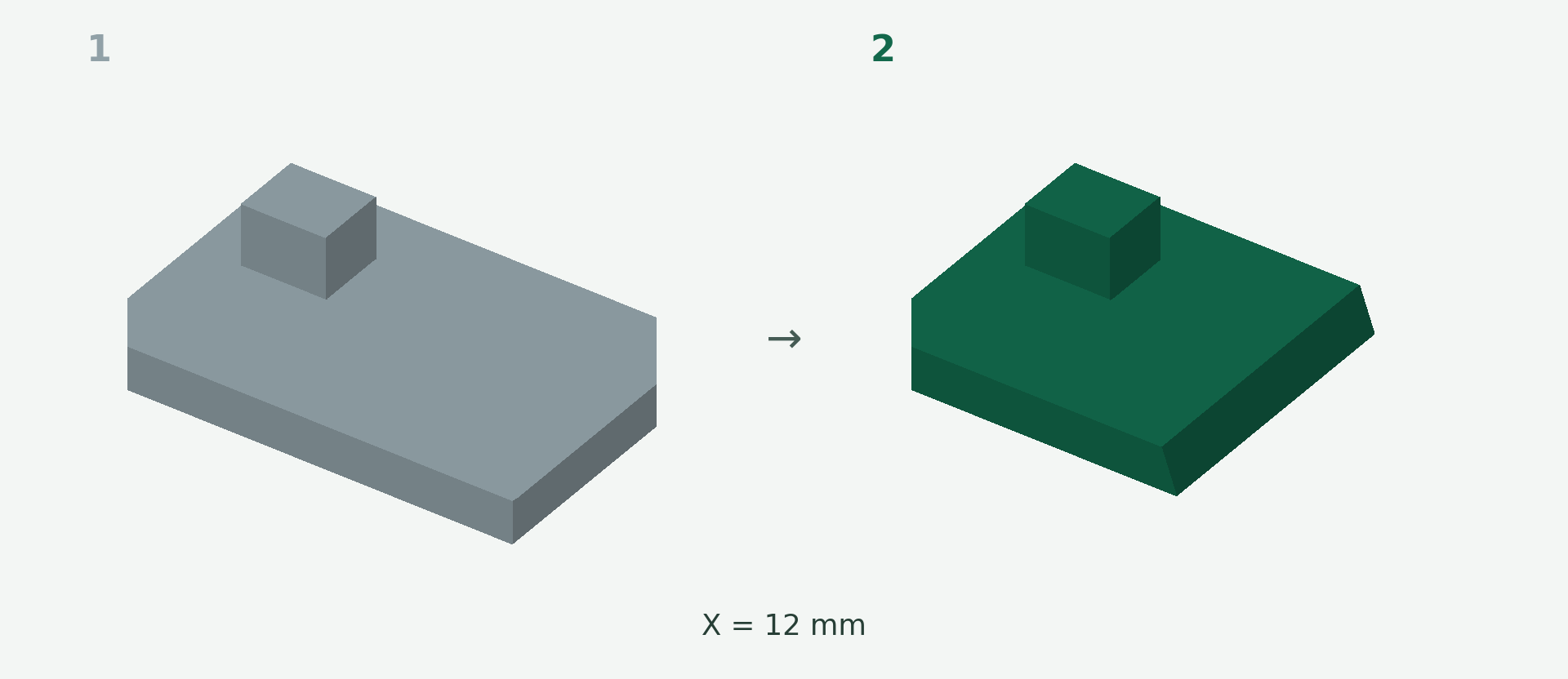
Rendered example views: 1 shows the original model and 2 the calculated result. The images illustrate the model geometry, not the editor interface.
A simple example
You want to remove an overhanging section from a plate.
Step by step
- Choose Plane Cut in the editor.
- Select the cutting plane and move it with the handles or numeric fields. Rotate the plane for an angled cut.
- Choose which side to keep. Positive and negative refer to the plane direction, not screen left and right.
- Wait for the calculated preview, inspect the cut surface and apply.
What to check
The plane must intersect the model. This workflow keeps one side; it does not automatically deliver two separate STL files.
Preview and save
A preview is not a saved change. Wait for the checked result and choose Apply. If the button is disabled, read the message and check the selection or inputs. The offered STL download is paid; you will see the current price before purchase.
Nächster Schritt