


STL tutorials ·
Scale an STL to the right size
Resize an STL proportionally or set a target dimension. Check the preview before saving the change.
Deutsch · English · Français · Español
Resize an STL proportionally or set a target dimension. Check the preview before saving the change.
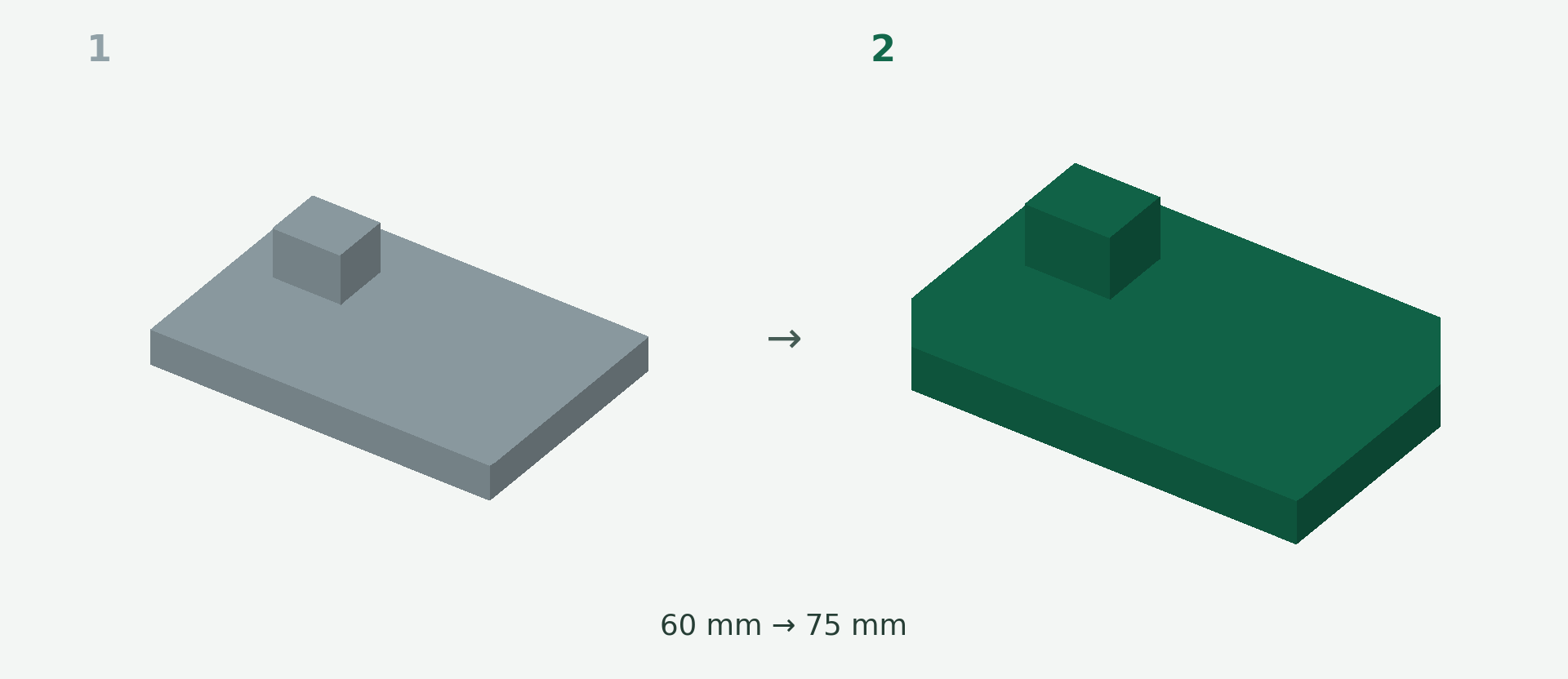
Rendered example views: 1 shows the original model and 2 the calculated result. The images illustrate the model geometry, not the editor interface.
A simple example
A plate is 60 mm long and needs to become 75 mm long. Use a scale factor of 1.25.
Step by step
- Upload the STL and open the model editor.
- Choose Scale. Use uniform scaling to preserve the shape.
- Enter 1.25 or set the target dimension. Keep the aspect ratio locked when using a target dimension if you want matching proportions.
- Check the new overall dimensions in the preview, then choose Apply.
What to check
Holes and wall thicknesses scale too. Separate X/Y/Z factors can turn a round hole into an oval.
Preview and save
A preview is not a saved change. Wait for the checked result and choose Apply. If the button is disabled, read the message and check the selection or inputs. The offered STL download is paid; you will see the current price before purchase.
Nächster Schritt