

Home & organization STL guides ·
Wave Vase – Design Your Own Vase STL: Create a Custom-Size 3D Model
Create a custom-size wave vase – design your own vase STL for your own 3D printer. Check the model controls, measure the fit and buy the generated digital file.
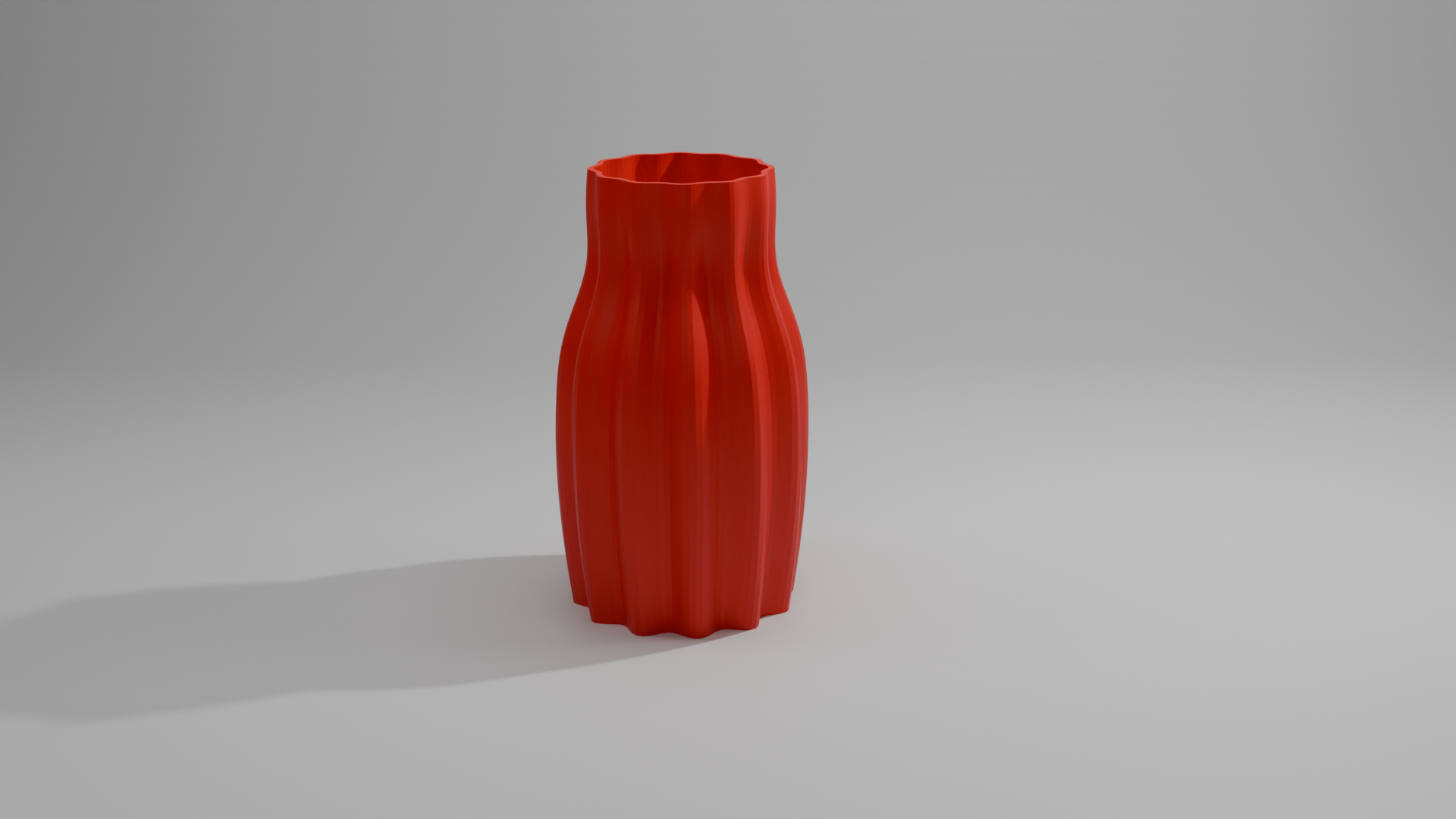
Design a custom wave vase that fits your home and interior style. Adjust its height, maximum diameter, opening, body curve, neck, number and depth of waves, and spiral twist directly online. The result is a unique modern vase with an organic sculptural surface, ideal as a decorative vase for dried flowers, pampas grass, eucalyptus or artificial flowers. Use the generated STL file on your own 3D printer or order the finished vase through our 3D printing service.
With the Custom Wave Vase – Design Your Own Vase template, you can turn those measurements into a custom-size STL. Review controls such as vase height, maximum diameter, opening diameter, check your model in the preview and choose the digital file. You buy the generated STL and print it on your own 3D printer, using your preferred filament and slicer settings.
Measurements for your wave vase – design your own vase STL
The product page exposes the following useful geometry controls. Work from your measured parts and check the displayed units and the preview before entering final values.
| Model control | What to check |
|---|---|
| Vase height | Measure from the relevant seating surface and check the available vertical clearance. |
| Maximum diameter | Measure across the circular feature and confirm which mating surface it represents. |
| Opening diameter | Measure across the circular feature and confirm which mating surface it represents. |
| Wall thickness | Check the remaining material around openings and inspect the walls in the slicer preview. |
| Bottom thickness | Check the material beneath the usable space as well as the overall height. |
| Body curve | Check this feature against the matching component and confirm its effect in the 3D preview. |
| Neck narrowing | Check this feature against the matching component and confirm its effect in the 3D preview. |
| Number of waves | Count the repeated features needed and check their overall span in the preview. |
| Wave depth | Check the usable depth and any stop, shoulder or component behind it. |
| Spiral twist | Check this feature against the matching component and confirm its effect in the 3D preview. |
Check readability at the size you will print
Review the spelling and arrangement before paying for the generated file. Thin letter strokes, small gaps and attachment features need to remain visible at the intended physical size. Enlarging a preview on screen can conceal details that will be tiny on the print.
Configure the model, buy the STL and print locally
- Open the wave vase – design your own vase product page and compare the model preview with your application.
- Enter the relevant measurements. Use the units displayed beside each input; convert inch measurements before using a millimetre field.
- Review the complete geometry and keep a record of your parameter values. Check small openings, mating features and remaining wall thickness.
- Choose the digital STL purchase option and review the current price and order details before payment.
- After receiving the STL, open it in your slicer, confirm the imported dimensions and inspect the layer preview before printing.
Configure my wave vase – design your own vase STL
Check a first print before making more
A CAD dimension and a printed dimension can differ. Print a fit sample or one prototype before making a batch, and check the features that contact other parts. Choose print orientation, supports and material for the actual geometry and application. There is no universal clearance or print profile that guarantees the fit on every machine.
Before you choose your STL
Why configure the model instead of scaling a download?
Uniform scaling changes all dimensions together. Here you can work with the available controls, including vase height, maximum diameter, opening diameter, and check the result before purchase. Keep your input values for later revisions: the downloaded STL contains the final mesh, rather than the original parametric editing history.
What do I buy?
Select the digital STL option for the file you will print yourself. Review the current price and selected configuration before paying. Ordering a finished print is a separate option.
Make the next print fit your project
Have your measurements ready? Open the wave vase – design your own vase template, adjust the model and inspect the preview. When the geometry matches what you need, choose your STL and take it to your own printer.
Next step